
从Playnite导入数据
LunaBox 支持从 Playnite 导入游戏数据,方便用户快速建立游戏库。请按照以下步骤操作:
1. 准备工作
确保您已经在电脑上安装并使用过 Playnite,并且有可用的游戏数据。游戏均有本地启动路径
2. 导出 Playnite 数据
打开 Playnite,按照以下步骤导出游戏数据:
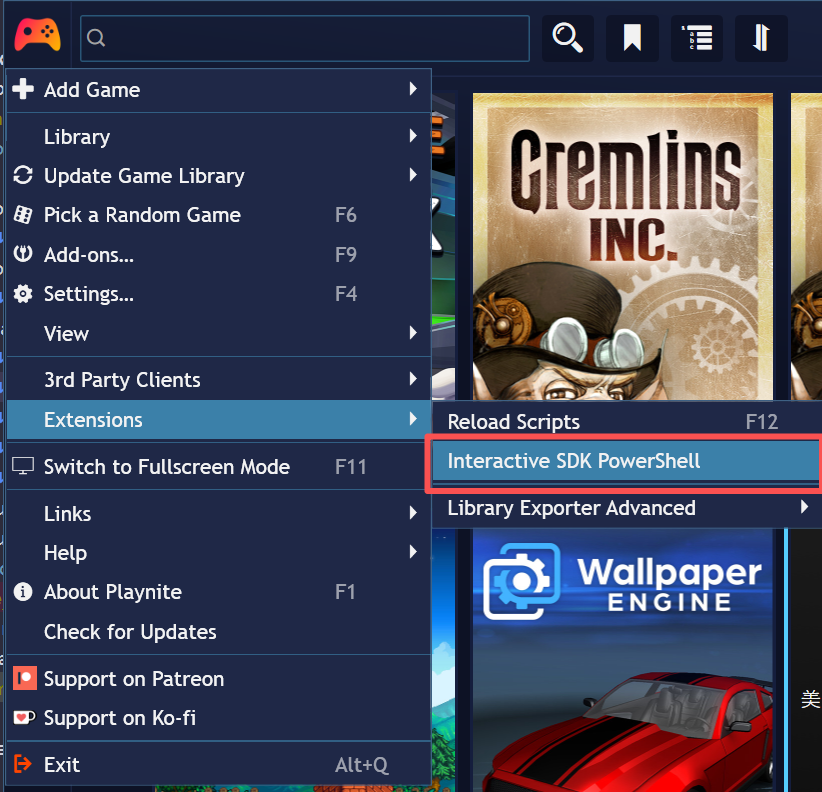
- 点击左上角的菜单按钮,选择 扩展 -> 交互式 SDK Powershell

- 在弹出的 Powershell 窗口中,创建并执行以下脚本以导出游戏数据为 JSON 文件:
powershell
# 指定导出路径,请根据需要修改此路径
$exportPath = "D:\Playnite_GAL_Export.json"
# 指定导出路径,请根据需要修改此路径
try {
Write-Host "--- Start Exporting Game Data ---" -ForegroundColor Cyan
if ($null -eq $PlayniteApi) {
# 尝试从 Playnite 静态属性获取 API 实例
try {
$PlayniteApi = [Playnite.SDK.API]::Instance
} catch {}
}
if ($null -eq $PlayniteApi) {
throw "Error: Still cannot find Playnite API. Are you sure this is the Playnite SDK window?"
}
$allGames = $PlayniteApi.Database.Games
$exportGames = @()
foreach ($game in $allGames) {
$launchPath = ""
# 查找主启动动作 (Type 0 = File)
$playAction = $game.GameActions | Where-Object {
$_.IsPlayAction -eq $true -and ($_.Type -eq 0 -or $_.Type -eq "File")
} | Select-Object -First 1
if ($playAction) {
$expandedPath = $PlayniteApi.ExpandGameVariables($game, $playAction.Path)
if (![System.IO.Path]::IsPathRooted($expandedPath)) {
$launchPath = [System.IO.Path]::Combine($game.InstallDirectory, $expandedPath)
} else {
$launchPath = $expandedPath
}
}
# 构建数据
$gameData = [PSCustomObject]@{
id = $game.Id.ToString()
name = $game.Name
cover_url = if ($game.CoverImage) { $PlayniteApi.Database.GetFullFilePath($game.CoverImage) } else { $null }
company = ($game.Developers -join ", ")
summary = $game.Description
path = $launchPath
save_path = $null
source_type = "local"
source_id = $game.GameId
cached_at = (Get-Date).ToUniversalTime().ToString("yyyy-MM-ddTHH:mm:ssZ")
created_at = (Get-Date).ToUniversalTime().ToString("yyyy-MM-ddTHH:mm:ssZ")
}
$exportGames += $gameData
}
# 导出并强制使用 UTF8 编码 (PowerShell 5.1 下会带 BOM)
$exportGames | ConvertTo-Json -Depth 5 | Out-File -FilePath $exportPath -Encoding UTF8
Write-Host "Export Success!" -ForegroundColor Green
Write-Host "Path: $exportPath"
Write-Host "Count: $($exportGames.Count)"
}
catch {
$errMsg = $_.Exception.Message
Write-Host "ERROR: $errMsg" -ForegroundColor Red
}WARNING
注意事项
- 请一定使用interactive SDK PowerShell运行此脚本,确保Playnite API可用
- 您可以保存这段脚本为.ps1文件(如命名为playnite_exporter.ps1),方便以后重复使用,在interactive SDK PowerShell中导航到保存脚本的目录,使用”. .\playnite_exporter.ps1“命令执行脚本
- 中文windows用户必须使用GBK编码保存此脚本以避免乱码问题
- 一定要确保脚本中的导出路径($exportPath)是有效且可写的,否则会导致导出失败
- 仓库中有GBK编码的脚本,您可以下载后修改导出路径直接使用
- 一切出现的数据问题,作者概不负责,请谨慎操作
3. 导入数据
- 在游戏库页面,点击 添加游戏 按钮,选择 从 Playnite 导入 选项。
- 在弹出的文件选择对话框中,找到并选择之前导出的 Playnite JSON 数据文件。
- 系统会自动预览将要导入的游戏列表,您可以查看哪些游戏将被导入、哪些已存在、哪些没有路径。
- 您可以选择是否跳过没有路径的游戏。
- 点击 导入 按钮,LunaBox 会自动解析文件并导入游戏数据。
4. 导入选项说明
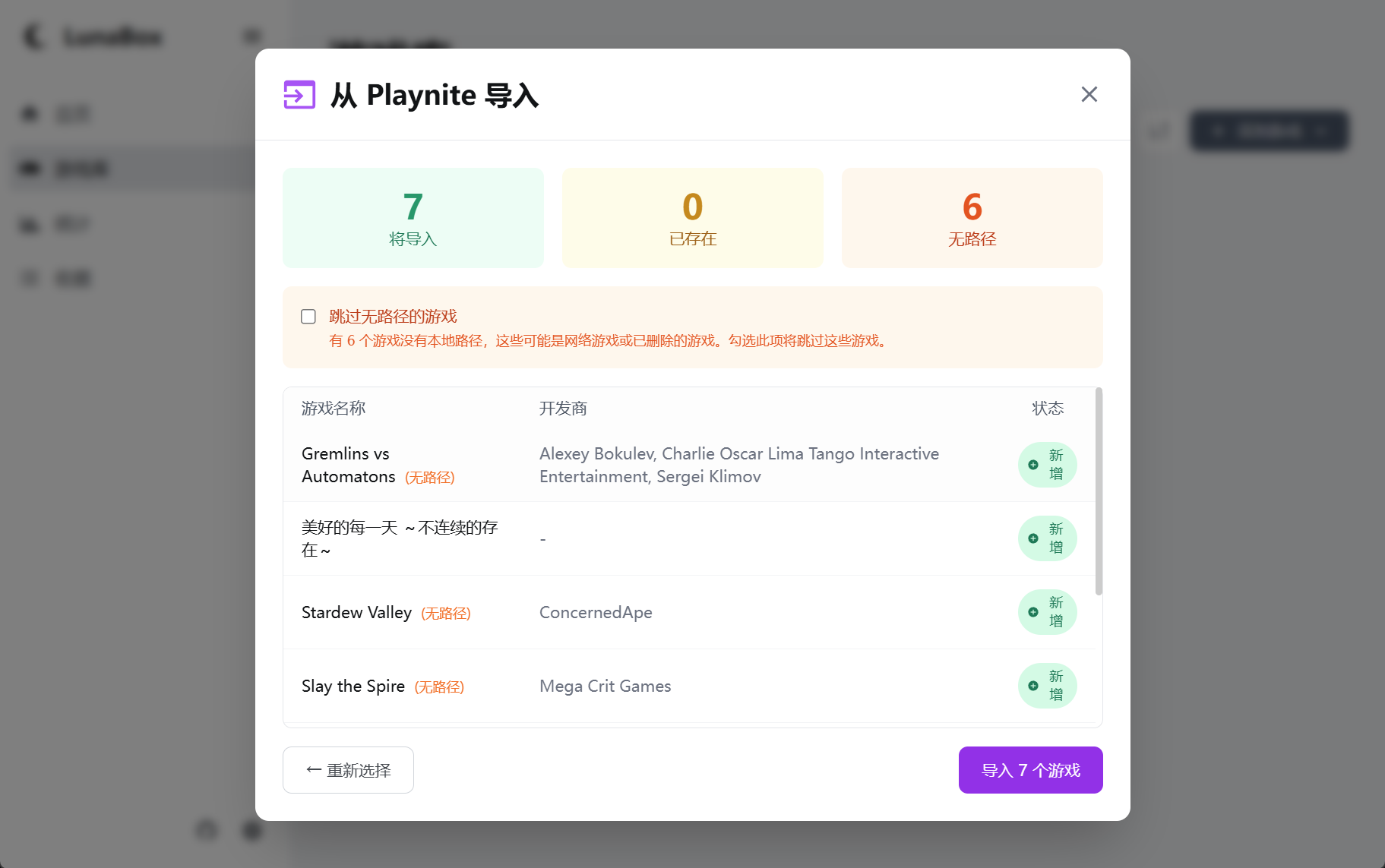
- 跳过无路径的游戏:勾选此项将跳过没有本地路径的游戏(可能是网络游戏或已删除的游戏)
- 预览功能:在导入前可以预览游戏列表,包括游戏名称、开发商、状态等信息
5. 确认导入结果
导入完成后,您可以在游戏库中查看导入的游戏列表。系统会显示导入成功、跳过和失败的游戏数量,确保所有数据正确无误。